

Password Manager & Security Keys — Secure Account Setup
Turn good security habits into a proven working setup. Create your Password Manager vault, protect it with Security Keys, Passkeys. Register security keys with Google, Microsoft & other supported platforms.
Guide reviewed: 12 October 2026. These examples use personal accounts; menus can vary by device, region and account policy.
Before you start
Prepare your accounts, devices and backup plan.
1. Gather what you need
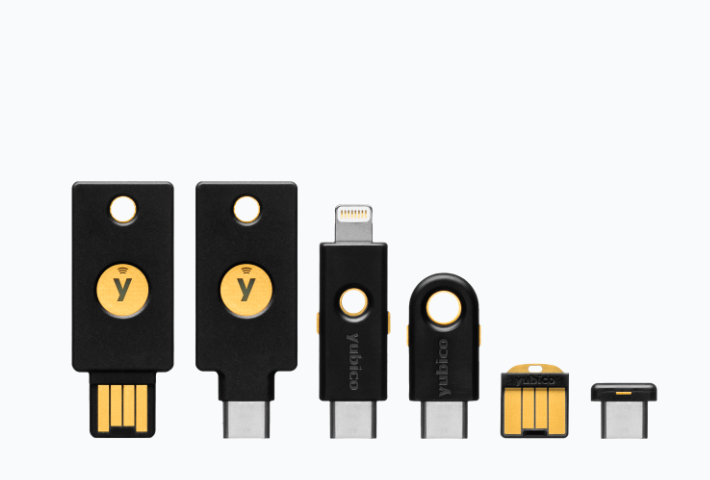
Use a trusted, up-to-date computer and browser. Create a new email address, preferably Gmail, and enrol it in Google’s Advanced Protection Program. Use this email address exclusively for your password manager—do not use it for any other purpose. You will also need two FIDO2-compatible security keys. This guide uses Keeper and YubiKey, the tools featured in our Account Protection guide. Check your chosen key model’s USB and NFC compatibility with your devices.
2. Understand what each setup does
Keeper uses the security key as a second factor authentication alongside your master password. Likewise, your Google and Microsoft accounts can use a passkey stored on the FIDO2 security key for passwordless sign-in, when not using the password manager. Adding a security key to Keeper does not register it with other accounts; repeat registration for every single account.
3. Plan before changing anything
Keep your existing, working sign-in method while registering and testing your security keys. Give each key a clear name, such as “Primary”, “Backup”, or something that will help you identifying them and store your backup keys separately. Remove or disable passwords and existing two-factor authentication methods(such as SMS and email) right after sign-ins with your passkeys and security keys have been successful. For work or school accounts, follow your organization’s IT policies and requirements.
Set up your Keeper password manager
Outcome: a working vault, recovery plan and saved login.
1. Create your account
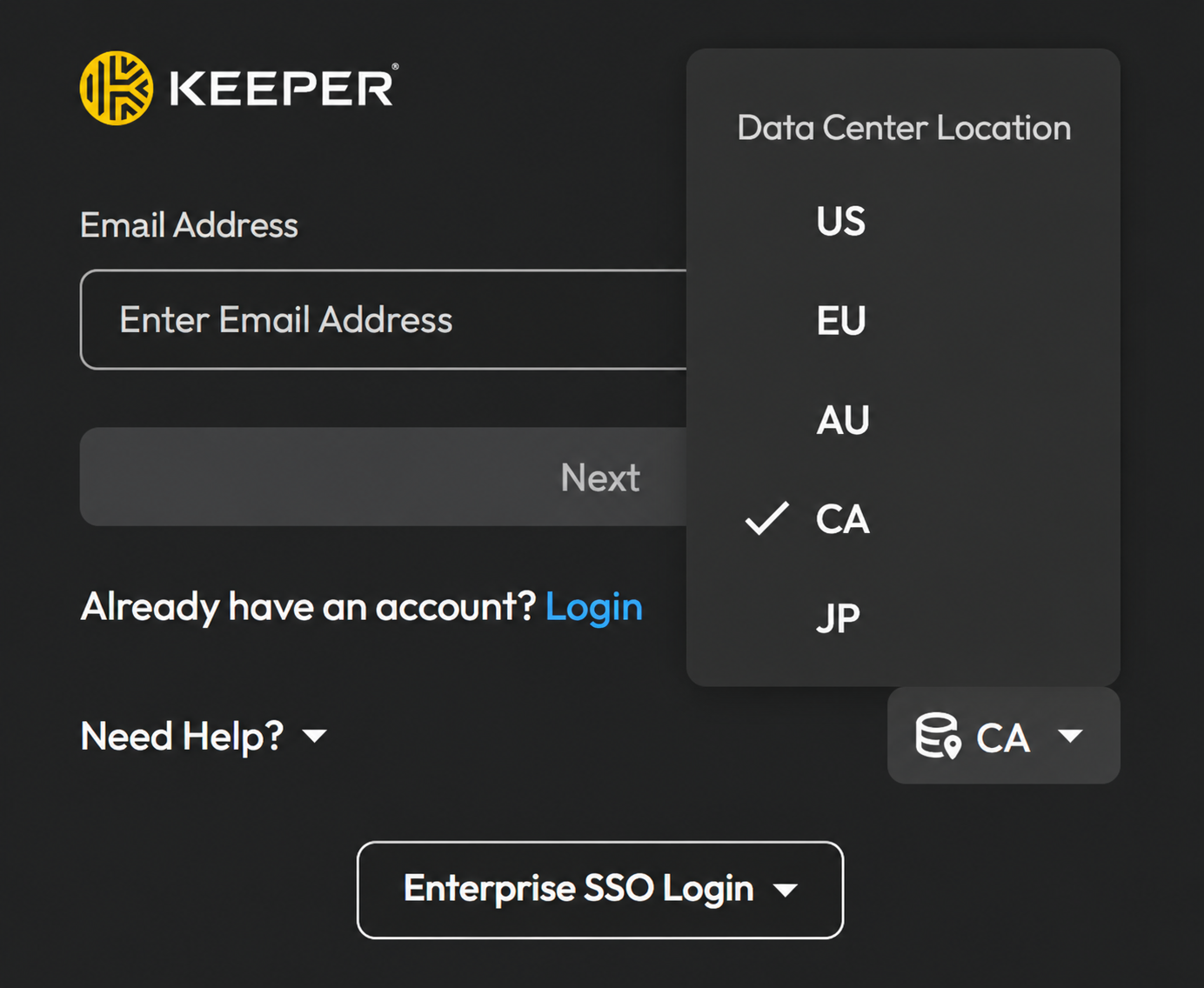
Open Keeper's official website or app. Choose the personal plan that suits you and follow account creation. Use a long, unique master passphrase, verify your email when prompted, and follow the onboarding prompts. Sign in to the correct regional vault for your account.
2. Prepare vault recovery
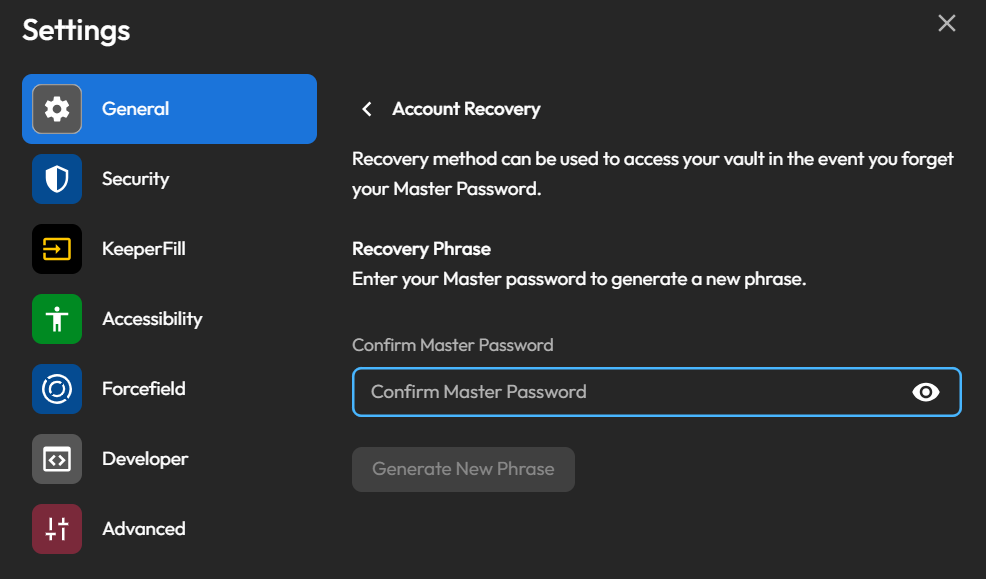
During onboarding, generate your 24-word recovery phrase and complete Keeper's confirmation. Store it offline in a safe location accessible without your vault. Do not publish it or store your only copy inside Keeper. Bear in mind that a spare security key does not replace a forgotten master password or recovery phrase.
3. Install KeeperFill and the mobile app
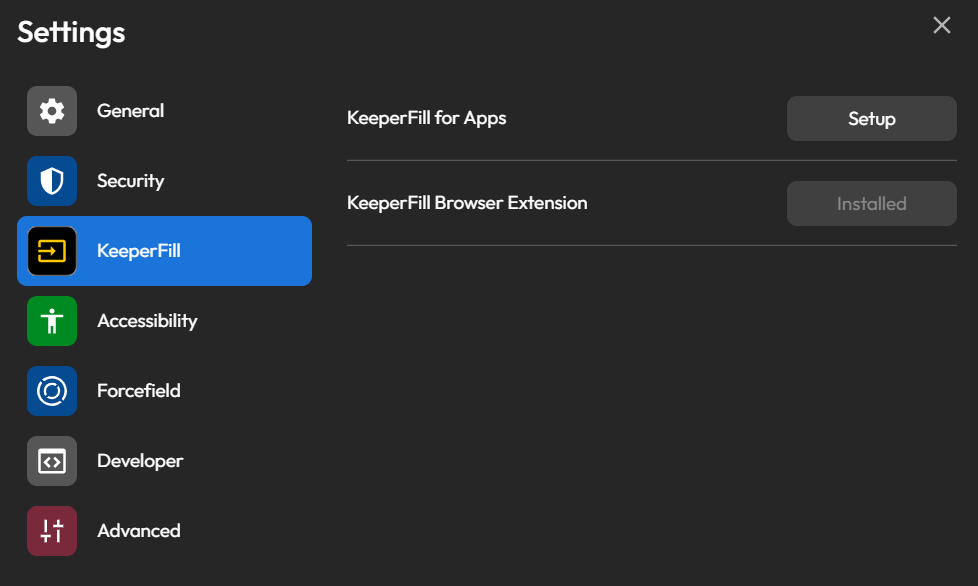
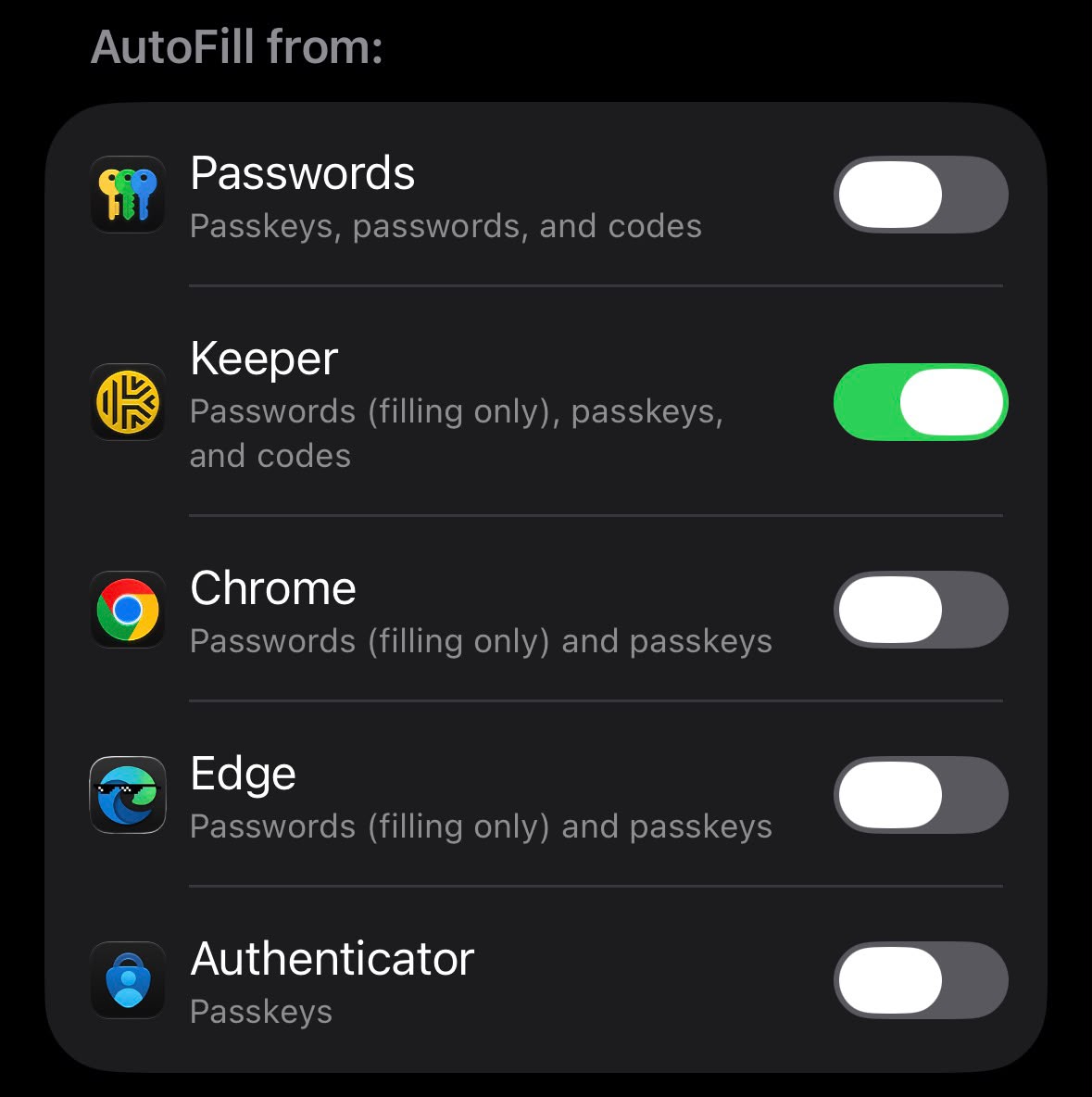
Use links from Keeper's official downloads page to install the browser extension and mobile app. Sign in to the same account. Complete device approval when requested, then enable Keeper as your phone's password autofill provider through the app's instructions.
4. Save and improve your first login
In your vault, create a Login record with a title, username, password and the exact website address. For an existing account, save its working password first. Then visit that service's password-change page, generate a unique password, submit the change there, and update the matching Keeper record. Editing a vault record alone does not change the website password.
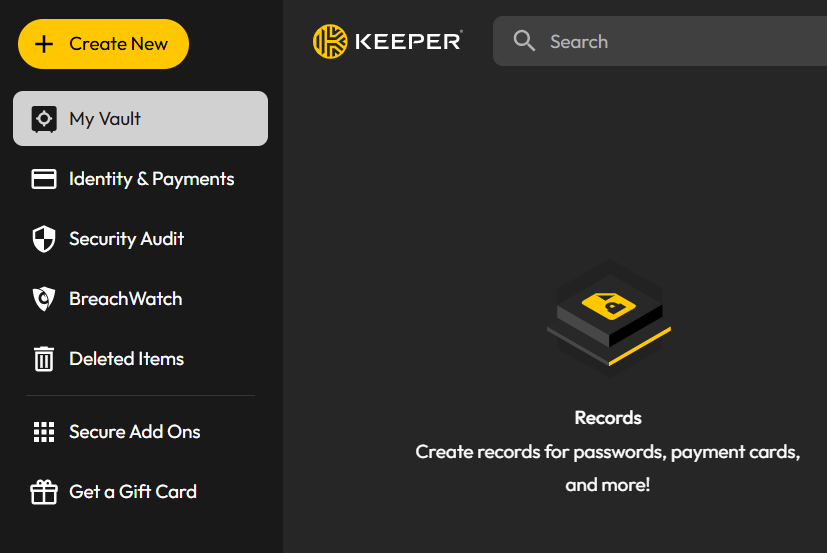
5. Test autofill
Visit the official website and use KeeperFill to select the matching record. Confirm the saved address is correct and sign-in works. Start with your email and other important accounts. Once Keeper works reliably, disable default browser password-saving prompts to avoid conflicting records.
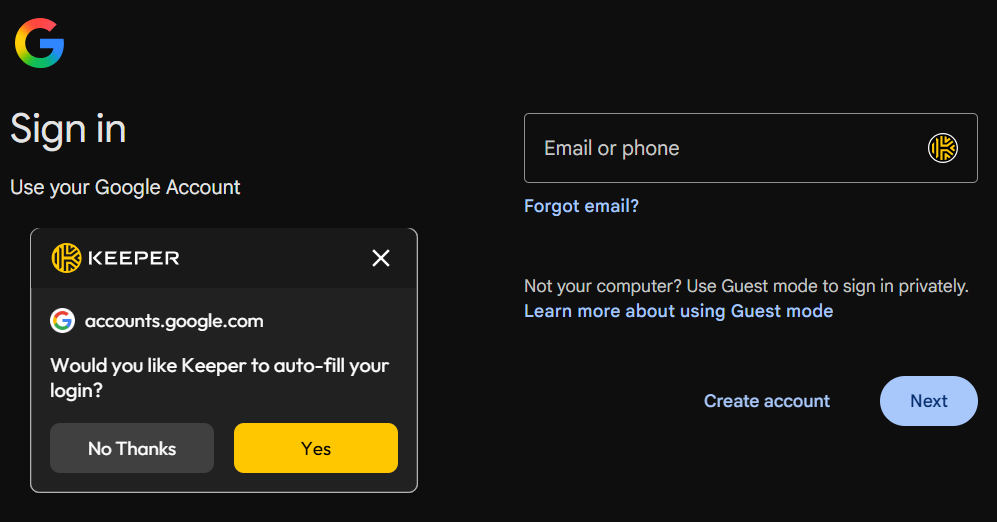
Protect your Keeper vault with a security key
Outcome: Your first and additional security keys registered for your password manager's vault 2FA.
1. Open security settings
From your Keeper account menu, open Settings, then Security. Enable Two-Factor Authentication and select the security-key setup option. Some interfaces show a separate Security Keys setup control. Follow the prompts for your account.
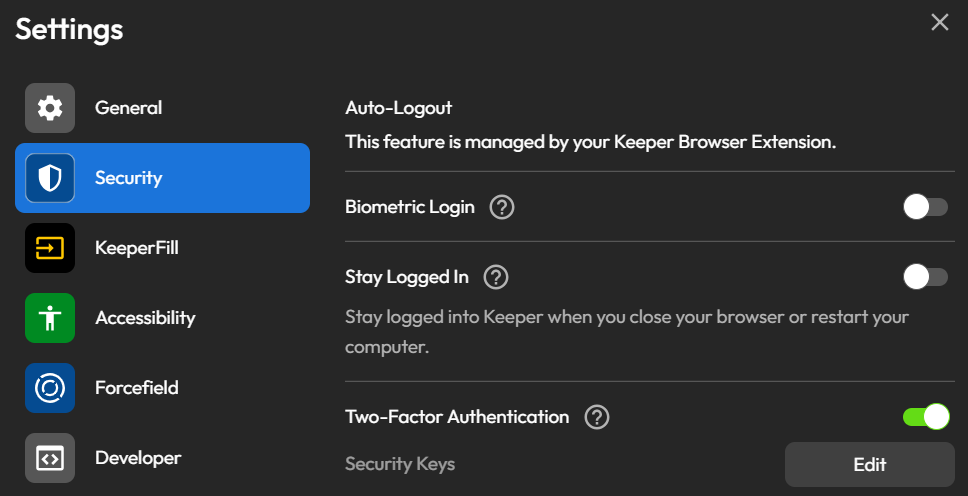
2. Register your primary key
Start registration. Insert or tap the key when prompted, choose the physical security-key option in the browser dialog, and enter its PIN if requested. Touch the key to confirm presence. Give it a recognizable name and finish registration. You will be signed out once the key has been registered.
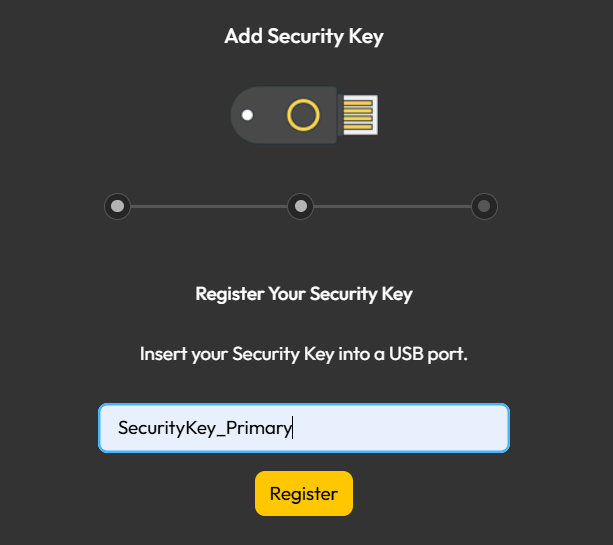
3. Register and test additional keys
Repeat registration with your second key; name it Backup. Keep a trusted session open while testing a separate sign-in with each key. Confirm that the key is being used, rather than an already remembered 2FA session. Test on the phone you intend it to use too.
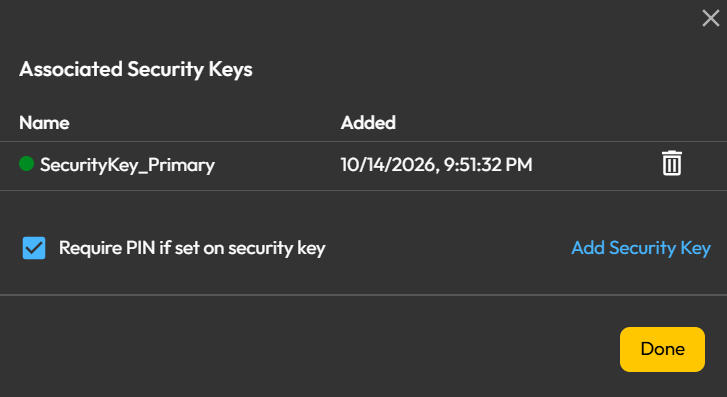
4. Review fallback and device approval
An authenticator fallback can help when a device cannot use your security key, but it does not provide the same phishing resistance protection. Test the recovery options on your devices and ensure you understand them. Keeper device approval is separate: use its supported email or Keeper Push approval flow when required.
Securing Google accounts
Outcome: A passkey stored on each physical FIDO2 security key.
1. Open Google passkey settings
Sign in to the intended Google account, open Security & sign-in, then Passkeys and security keys. Verify your identity when asked.
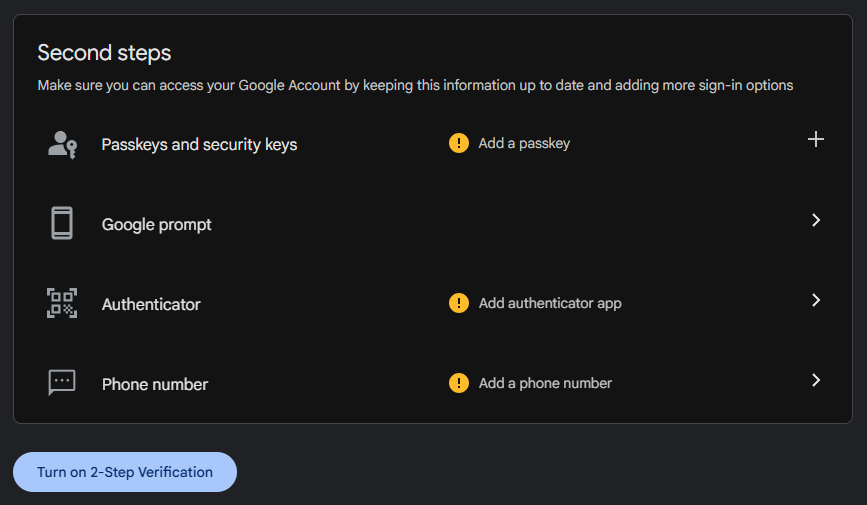
2. Create the passkey on your security keys
Choose "Create a passkey", then "Use another device". In the system dialog, select the physical security-key option rather than saving the passkey to your computer. Insert or tap your FIDO2 security key, provide its PIN when prompted, and confirm by touching it.
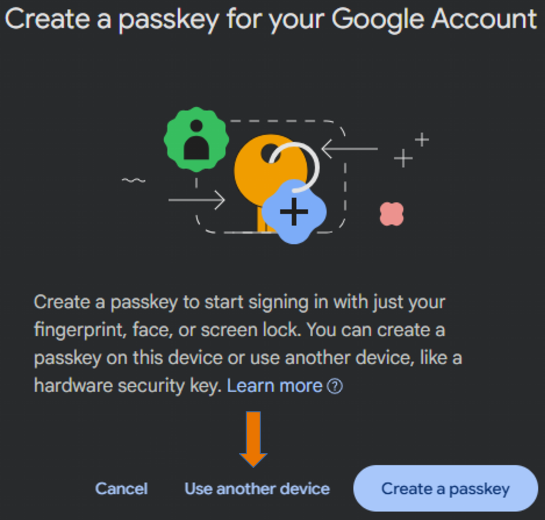
3. Add additional security keys and test
Repeat with additional security keys and check all entries. In a separate signed-out browser profile, begin Google sign-in and select the key/passkey option when offered. Test all security keys while keeping your original session available. Google may delay use of a newly added passkey.
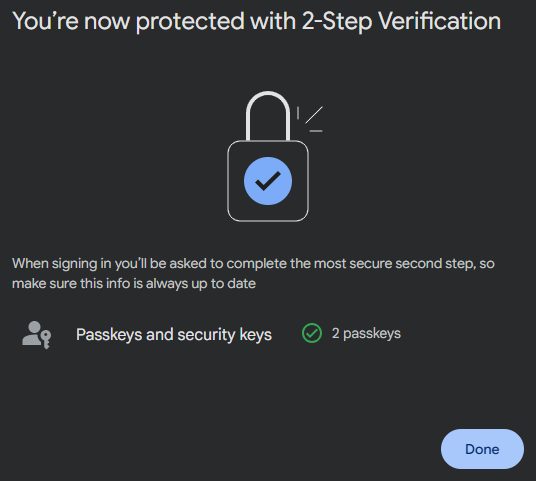
4. Check the sign-in method
This walkthrough creates a hardware passkey. Adding it does not automatically remove your password. Ensure "Skip password when possible" is enabled. You’ll be able to sign in securely with just a passkey. Learn more
Securing Microsoft accounts
For Outlook, and Hotmail personal Microsoft accounts.
1. Open your account security options
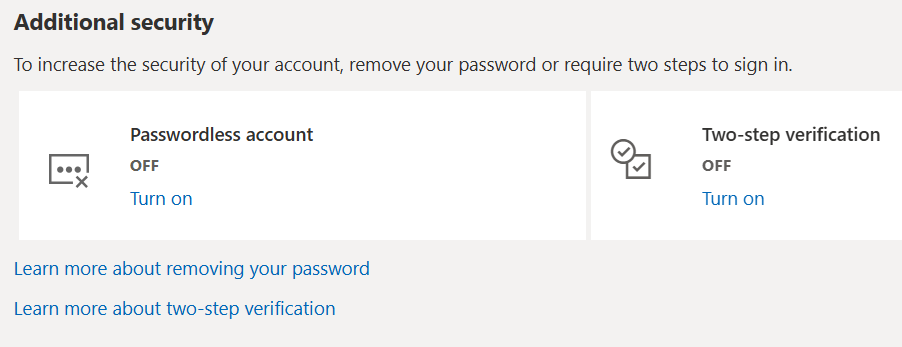
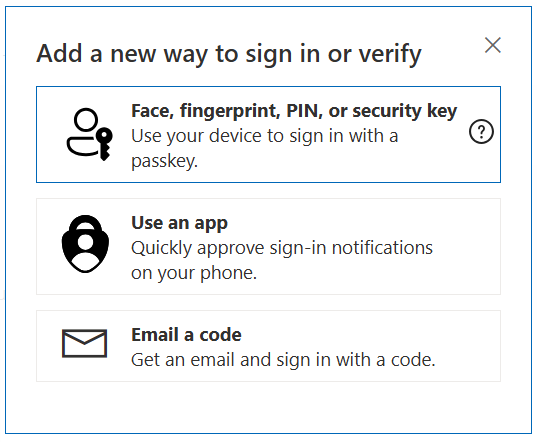
Sign in to your personal Microsoft account at account.microsoft.com. Open Security and its additional or advanced security options. Select Add a new way to sign in or verify, then Use a security key. Labels may vary as Microsoft updates the interface.
2. Register and name your key
Choose USB or NFC as prompted. Connect or tap your key, create or enter its PIN, and touch it to confirm. Name the key Primary. Repeat the process with your second key and name it Backup.
3. Test passwordless sign-in
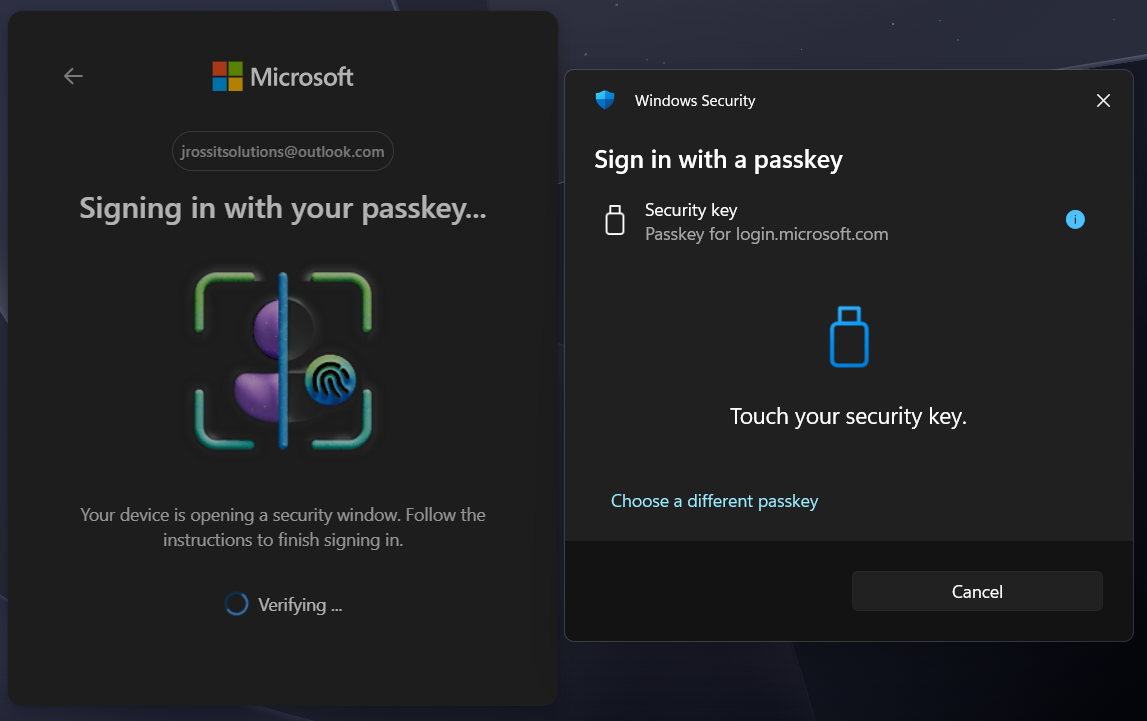
Keep the original session open. In another signed-out browser profile, visit Microsoft sign-in and select the Windows Hello, passkey or security-key sign-in option offered. Choose your physical key and complete the prompt. Test both keys. This protects the Microsoft account used by Outlook.com; it is not a separate Outlook desktop setting.
4. Using a work or school account?
Contact IT first. Your organization must permit this sign-in method. If enabled, use your work account's Security info page to add the approved passkey/security key. Do not assume personal-account instructions or recovery options apply to Microsoft 365 at work.
Protecting other types of accounts
Use the same approach only where the service supports it.
1. Check the account's available methods
Visit the service directly and look in Security, Sign-in methods, Passkeys or Two-factor authentication. Confirm whether it supports a physical FIDO2 key, or passkeys. Support varies by service and account type.
2. Register, document and test
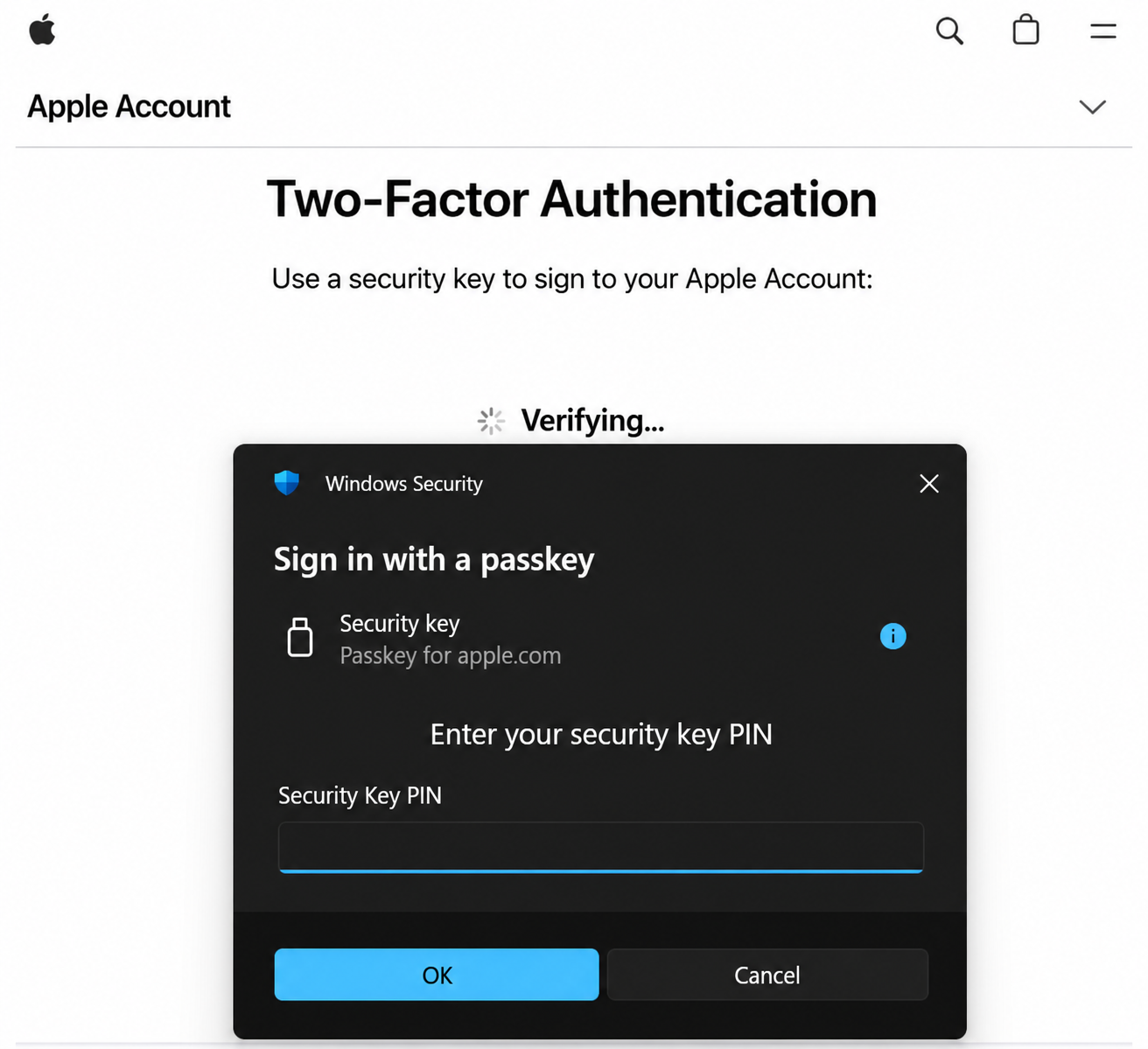
Register all of your security keys wherever supported. Document which keys are registered to each account and which recovery methods remain available. Test a fresh sign-in before removing any existing methods. If physical security keys are not supported, use another strong authentication method, such as a passkey or biometric authentication, or an authenticator app as a last resort.
Test your setup and prepare for recovery
Finish with a setup you can use and recover.
1. Complete your final checks
Confirm: Keeper autofill works; the vault has working 2FA; all keys work with every account where registered; your phone supports the chosen method; and recovery information is available outside the vault. Keep additional security keys in a separate secure place.
2. If a key is lost
Use your registered backup keys or the service's existing recovery method. Remove the lost key from each affected account and register a replacement. Removal from one account does not remove it from others. If you cannot sign in, use the provider's official recovery process.
3. If the PIN is not accepted
The key PIN is different from your account password and Windows device PIN. Stop guessing and consult the manufacturer's guidance. A key reset can erase stored credentials; do not reset it as a routine troubleshooting step.
4. If the key option is missing
Check your key's protocol and connection, update your browser and operating system, and confirm that the service and account support physical keys. If Keeper opens instead of the hardware-key prompt, choose another device or security key in the system dialog. Work-account restrictions require the assistance of your company's IT team.